
Sora 2 Storyboard: What It Is and How to Use It (Complete Guide 2026)
I used to stitch 5 clips together every time I needed a multi-scene video. Sora 2 Storyboard changed that. Here's the complete guide to what it is, how to use it, and its real limitations.
Before I found Sora 2's Storyboard mode, every multi-scene AI video I made required manually stitching five separate clips together in an editor. The result was always a little off — different lighting, inconsistent character looks, mismatched pacing. Storyboard changed that completely. Here is everything you need to know.
What Is Sora 2 Storyboard?
Sora 2 Storyboard is a multi-frame video generation mode available on Sora 2 Pro. Instead of generating a single continuous shot from one prompt, Storyboard lets you define multiple frames — each with its own scene prompt — and Sora 2 generates a coherent video sequence connecting all of them.
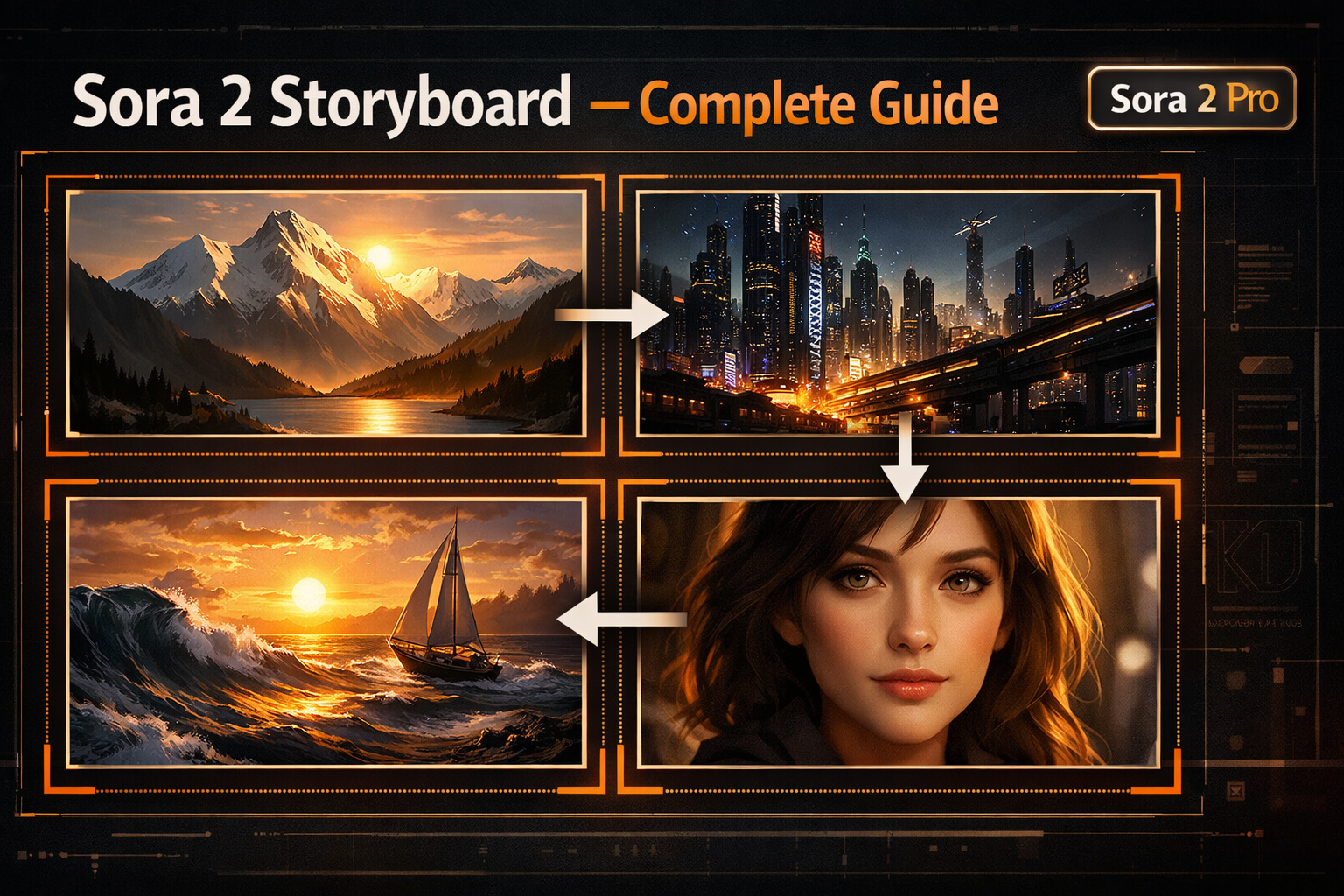
Think of it like writing a shot list for a film, then handing it to an AI director. Each frame in your Storyboard is a keyframe — Sora 2 fills in the transitions, camera movements, and scene continuity automatically.
Use Sora 2 Storyboard on SoraVideo.art
You can access Sora 2 Storyboard directly through SoraVideo.art's Storyboard tool — no separate Sora 2 Pro subscription required. It is also available natively on the Sora 2 Pro plan at sora.com.
Sora 2 Storyboard vs Regular Video Generation
Here is what makes Storyboard different from a standard Sora 2 generation:
| Feature | Standard Generation | Storyboard Mode |
|---|---|---|
| Input | Single prompt | Multiple frame prompts |
| Output | One continuous shot | Multi-scene sequence |
| Scene Transitions | Manual post-editing | Automatic |
| Character Consistency | Per-clip only | Across all frames |
| Use Case | Single hero shot | Short films, narratives |
| Generation Speed | Fast | Slower (3+ frames) |
Standard generation is faster and better for cinematic single shots. Storyboard is the tool you reach for when you need narrative coherence across multiple scenes.
How to Use Sora 2 Storyboard: Step-by-Step
Here is the exact process to get your first Storyboard video done:
The fastest way to start is SoraVideo.art's Storyboard tool — available directly in your browser with no extra subscription. Alternatively, go to sora.com with a ChatGPT Plus or Pro account.
From the Sora 2 dashboard, click Storyboard in the creation mode selector. The editor opens with an empty frame timeline at the bottom and a main preview area above.
Click Add Frame to create your opening scene. Write a detailed prompt describing exactly what you want in this shot — include subject, environment, lighting, camera angle, and mood. The more specific, the better the frame-to-frame consistency.
Add additional frames for each scene in your sequence. You can add up to 5 frames per Storyboard generation. Write a distinct scene prompt for each frame, keeping character descriptions consistent across all prompts to maintain visual continuity.
Review your frame sequence in the timeline, adjust any frame order by dragging, then click Generate. Sora 2 will process all frames and render a complete video sequence with automatic transitions between scenes.
Sora 2 Storyboard Tips for Better Results
I've run dozens of Storyboard sequences. Here are the five things that actually move the quality needle:
1. Keep Character Descriptions Identical Across Frames
The biggest quality issue in Storyboard outputs is inconsistent character appearance between frames. Copy your exact character description (age, hair, clothing, physical features) and paste it into every frame prompt. Do not paraphrase — use identical language.
2. Describe Camera Movement Per Frame
Add explicit camera direction to each prompt: "slow push in," "wide establishing shot," "close-up handheld," "aerial pullback." Sora 2 Storyboard responds well to cinematographic language and it prevents all frames from defaulting to the same static medium shot.
3. Use Scene Connectors in Adjacent Prompts
When two scenes share a location, reference the previous setting in the next frame's prompt: "same forest path, now at twilight, the character continues walking north." This helps Sora 2 maintain environmental continuity even across lighting and time-of-day changes.
4. Start Simple (2 Frames) Before Going Complex
Three-frame and five-frame Storyboards take significantly longer to generate and give Sora 2 more opportunities to break character or scene consistency. Start with 2-frame sequences, confirm the model handles your character prompt well, then expand.
5. Write Each Frame Prompt at Full Length
Short prompts like "mountain scene, daytime" produce generic outputs. Each Storyboard frame deserves the same attention as a standalone generation prompt — two to four sentences minimum.
Sora 2 Storyboard Limitations You Should Know
I'm here to be honest about the gaps. Storyboard is powerful but it has real constraints.
Why Is Sora 2 Slow With 3 Frames in Storyboard?
Multi-frame Storyboard generation is computationally expensive. Sora 2 must simultaneously maintain temporal consistency, character identity, environmental coherence, and frame transition quality across all frames at once — rather than generating each shot independently. With 3 frames, generation time can be 3–5x longer than a standard single shot. With 5 frames, expect to wait significantly longer.
Why Can't Sora 352p Videos Be Longer Than 15 Seconds?
The 352p (low resolution) output mode in Sora 2 has a maximum clip length of 15 seconds. This is a platform constraint on the lower-quality tier. If you need longer output, switch to 720p or 1080p resolution mode — the full-resolution tiers support longer video durations.
How Many Credits Does Sora 2 Storyboard Require?
Storyboard generation uses more credits than standard single-shot generation because of the multi-frame processing involved. Check the current credit costs in your Sora 2 Pro account — credit requirements scale with the number of frames in your sequence.
Character Consistency Is Not Perfect
Even with identical character prompts, Sora 2 Storyboard occasionally drifts on fine details like hair length, clothing texture, or facial features between frames. Run multiple generations and select the best one. This is a known limitation being actively improved.
Sora 2 Storyboard vs Seedance 2.0 Multi-Shot
Both Sora 2 Storyboard and Seedance 2.0 offer multi-scene AI video generation — but they work differently and suit different workflows.
| Feature | Sora 2 Storyboard | Seedance 2.0 Multi-Shot |
|---|---|---|
| Input Control | Per-frame manual prompts | Single prompt, AI-driven |
| Scene Count | Up to 5 frames | Variable, auto-generated |
| Native Audio | No | Yes — synchronized |
| Character Consistency | Manual (identical prompts) | Automatic |
| Output Resolution | Up to 1080p | Up to native 2K |
| Best For | Precise creative control | Fast narrative generation |
Use Sora 2 Storyboard when: You need precise control over each scene and are willing to spend time writing detailed per-frame prompts. Best for deliberate cinematic narratives.
Use Seedance 2.0 Multi-Shot when: You want coherent multi-scene output fast, with synchronized audio, without managing per-frame prompts. Best for social content and rapid iteration.
Many creators use both — Storyboard for flagship content that needs precision, Seedance 2.0 for high-volume social content.
FAQ
Which apps use Sora 2 Storyboard? Sora 2 Storyboard is currently exclusive to the official Sora platform at sora.com. It is not available through third-party API integrations at this time.
Is Sora 2 Storyboard available on all plans? No. Storyboard mode requires a Sora 2 Pro subscription. The free and Plus tiers do not include Storyboard access.
Can I export Storyboard frames as separate clips? Yes. After generation, you can download the full sequence as a single video or export individual frame segments depending on your Sora 2 Pro plan's export options.
How many frames can I add to a Storyboard? Up to 5 frames per Storyboard generation on the current Sora 2 Pro plan.
Does Sora 2 Storyboard support image input? Yes. You can attach reference images to individual Storyboard frames to guide the visual style or character appearance for that specific scene.
What is the difference between Sora 2 Storyboard and the Extend feature? Storyboard generates a multi-scene sequence from defined keyframes upfront. The Extend feature takes an existing generated clip and continues it — useful for lengthening a single shot, not for building multi-scene narratives.
The Bottom Line
Sora 2 Storyboard is the most direct way to get multi-scene AI video output with creative control over each frame. The trade-off is time — it is slower than single-shot generation and requires thoughtful per-frame prompting to get great results.
For creators who want quick, coherent multi-scene output with audio, Seedance 2.0's Multi-Shot is worth trying alongside Storyboard. For precise cinematic narratives where you need frame-level control, Storyboard is the tool. Once your video is ready, upscale it to 4K with our free AI video upscaler for the best possible output quality.
Create multi-scene AI videos
Use Sora 2 Storyboard, Seedance 2.0 Multi-Shot, and Kling Motion Control on SoraVideo.art — all your AI video tools in one place. See plans.
Author

Categories
More Posts

What Is the SBTI Test? The Viral Personality Test That Broke the Internet in 2026
SBTI personality test went viral overnight. Learn what SBTI stands for, how to take the free test, all 27 personality types, and why everyone is sharing their results.

Sora 2 Prompt Generator: Timecode Tricks + Real Viral Examples
Learn how to write Sora 2 prompts that actually work. Master timecode techniques, copy-paste templates, and see real examples from viral AI videos.
How to Remove Sora 2 Watermark: 5 Methods That Actually Work in 2026
Learn how to remove Sora 2 watermark from your AI-generated videos. We tested Reddit suggestions, CapCut, and professional tools to find the best Sora watermark remover.
Newsletter
Join the community
Subscribe to our newsletter for the latest news and updates