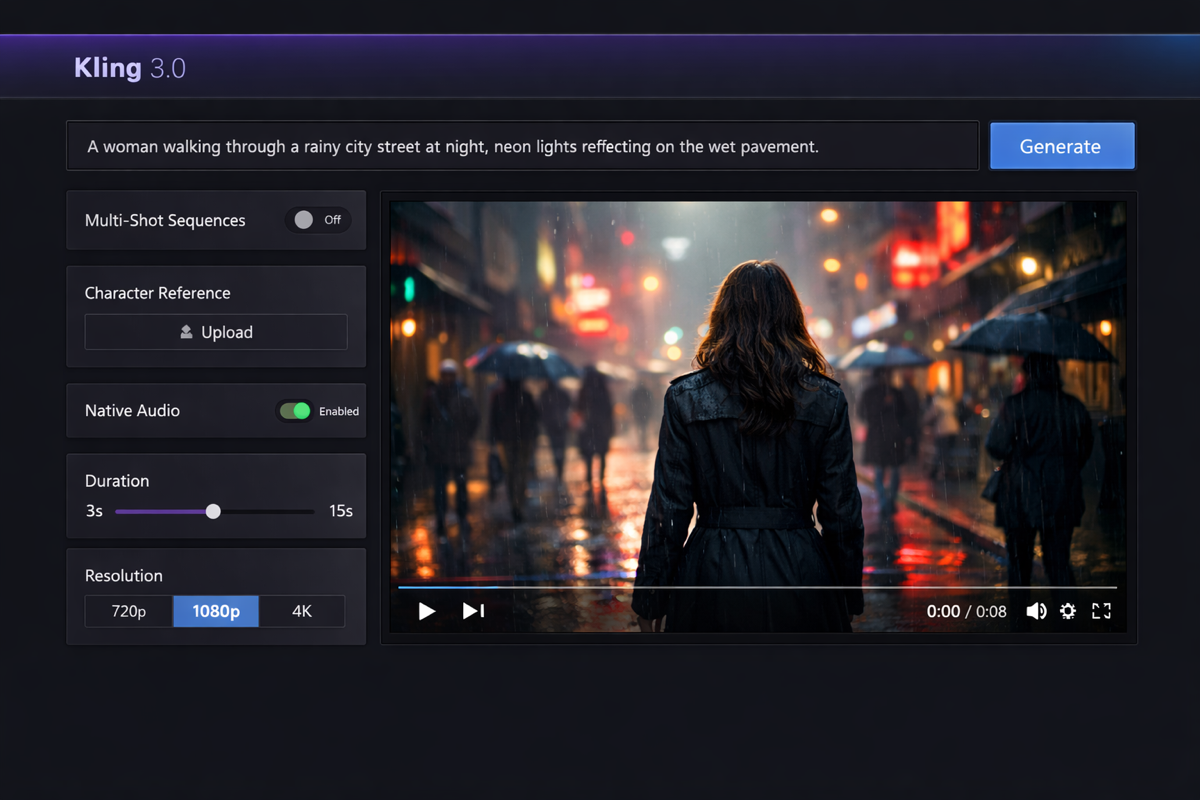
How to Use Kling 3.0: Motion Control, Multi-Shot & Prompt Guide
Step-by-step guide to using Kling 3.0 AI video generator. Master motion control, write effective prompts, create multi-shot sequences, and build character consistency.
I spent my first three hours with Kling 3.0 generating nothing but slow-motion blobs. The motion control settings were wrong, my prompts were too vague, and I had no idea multi-shot even existed. Once I figured out the actual workflow, everything clicked. Here is the guide I wish I had on day one — so you can skip the frustration and start generating great Kling 3.0 AI video immediately.
Where to Access Kling 3.0 Right Now
Kling 3.0 is available on several platforms, each with different pricing and features. You do not need an invite or waitlist — just pick the platform that fits your situation and start generating.
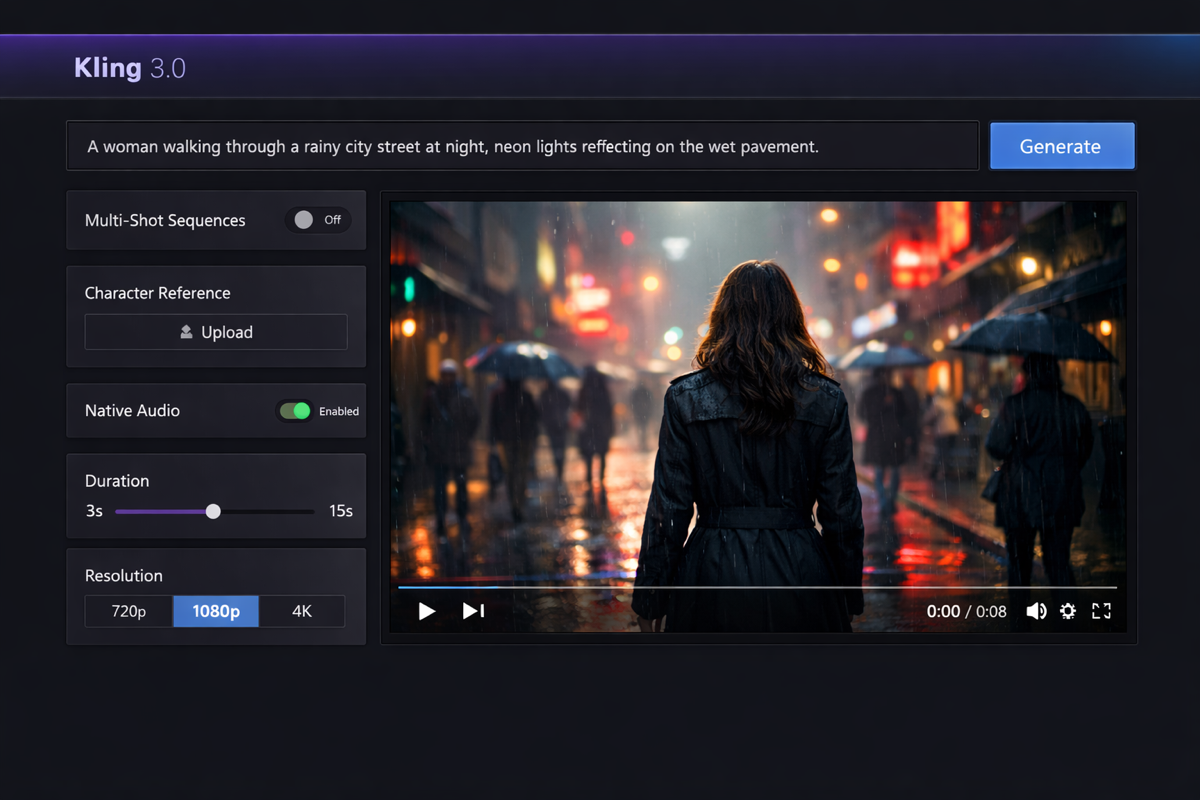
Here is a quick comparison of your options for using Kling 3.0:
| Platform | Free Tier | Kling 3.0 Access | Best For |
|---|---|---|---|
| Kling AI Official | Daily free credits | Full Kling 3.0 + Omni | Direct access, all features |
| SoraVideo.art | Starter credits | Kling 3.0 + Sora 2 + more | All-in-one AI video platform |
| Higgsfield AI | Limited free | Kling 3.0 video | Budget-friendly plans |
| Freepik | Included in Premium | Kling 3.0 bundled | Creators with existing Freepik subscription |
| Fal.ai | API credits | Kling 3.0 API | Developers building applications |
Fastest way to try Kling 3.0
The fastest way to start using Kling 3.0 is SoraVideo.art's Kling 3.0 tool. No separate Kling AI account needed. You also get access to Sora 2, Seedance 2.0, motion control, and the watermark remover — all in one platform.
How to Use Kling 3.0 Step by Step
Here is the exact process I follow every time I generate a video with the Kling 3.0 AI model:
Go to your chosen platform and navigate to the Kling 3.0 AI video generation tool. On SoraVideo.art, click "Kling 3.0" in the tools sidebar. On the official Kling AI platform, select "Video 3.0" from the model picker.
Enter a specific scene description in the prompt field. Include camera movement, character action, lighting, and mood. The Kling 3.0 AI model follows detailed instructions well — vague prompts produce vague results. I will share my exact prompt formula below.
Set your duration (3-15 seconds), resolution (720p, 1080p, or 4K), and toggle multi-shot if you want multiple camera angles. Enable "Native Audio" if you want the Kling 3.0 model to generate synchronized dialogue and sound effects.
For motion control: upload a reference video showing the movement you want. For character consistency: upload a face reference image through the Elements panel. For image-to-video: upload your source image as the starting frame.
Click Generate and wait for your Kling 3.0 video (typically 30-90 seconds). Review the output, adjust your prompt or settings, and regenerate if needed. Download your final video when satisfied.
How to Write Kling 3.0 Prompts That Actually Work
The difference between a mediocre and a stunning Kling 3.0 output almost always comes down to the prompt. After generating hundreds of Kling 3.0 videos, here is the prompt structure that consistently produces the best results.
Kling 3.0 Prompt Structure
Every effective Kling 3.0 prompt should include these four elements in order:
- Subject and action: Who or what is in the scene, and what are they doing
- Camera movement: How the camera moves (tracking shot, dolly in, static, handheld)
- Lighting and mood: The lighting conditions and emotional atmosphere
- Style reference: The visual style (cinematic, documentary, anime, photorealistic)
Best Kling 3.0 Prompt Examples
Here are prompts that I have tested and consistently produce high-quality Kling 3.0 video output:
For cinematic product shots:
A pair of white wireless headphones floating and slowly rotating against a clean gradient background, soft studio lighting from above creating subtle shadows, gentle particles drifting in the air, product photography style, 4K
For character-driven scenes:
A woman in a dark jacket walking through a rainy Tokyo street at night, neon signs reflecting on wet pavement, camera following from behind in a slow tracking shot, shallow depth of field, cinematic color grading
For motion control reference:
A parkour athlete performing a wall flip on a rooftop at golden hour, dynamic camera tracking the full movement, city skyline in the background, warm orange backlight, action sports cinematography style
Common Kling 3.0 Prompt Mistakes to Avoid
- Too vague: "A person walking" gives the Kling 3.0 model nothing to work with. Add specifics about who, where, how, and what the camera does.
- Contradictory instructions: Do not ask for "static camera" and "sweeping pan" in the same Kling 3.0 prompt.
- Keyword stuffing: Writing "4K ultra HD cinematic masterpiece beautiful stunning" does not help. Focus on concrete visual descriptions.
- Ignoring camera direction: The Kling 3.0 AI model excels at camera movement. Always specify your camera angle and motion for better results.
Kling 3.0 Motion Control: The Feature That Changes Everything
Motion control is the single most powerful feature in the Kling 3.0 AI video model. It is what separates Kling from every other AI video generator on the market right now. Here is how to use it effectively.
How Motion Control Works in Kling 3.0
The Kling 3.0 motion control system takes a reference video and extracts the movement data — body poses, camera trajectory, timing, and spatial relationships. It then applies that exact movement to your generated video, matching your prompt and style while preserving the original motion.

The practical workflow:
- Record or find a reference video showing the movement you want
- Upload it to the Kling 3.0 motion control panel
- Write a prompt describing the character and scene (not the movement — Kling 3.0 gets that from the reference)
- Generate and the Kling 3.0 AI model applies the exact movement to your scene
Motion Control Tips from the Kling 3.0 Community
After reading hundreds of posts from experienced Kling 3.0 users, here are the tips that come up most often:
- Use clean reference videos: Simple backgrounds and clear body visibility give the Kling 3.0 model better motion data to work with
- Match the camera angle: If your reference is shot from the front, your Kling 3.0 output will look best from a similar angle
- Keep movements moderate at first: Extreme or very fast movements are where the Kling 3.0 model is most likely to introduce artifacts
- Combine with character reference: Use Elements to lock your character's face, then use motion control for the movement — this gives you consistent characters with precise motion in Kling 3.0
As one experienced creator shared: "I storyboard every hero shot in stills first so the shape and details never drift, then feed those images into Kling 3.0 image-to-video for the final product clips."
Creating Multi-Shot Sequences with Kling 3.0
Multi-shot is the second headline feature of Kling 3.0 that transforms how you create AI video content. Instead of generating individual clips and stitching them together, the Kling 3.0 model creates a coherent multi-shot sequence in a single generation.
How Kling 3.0 Multi-Shot Works
When you enable multi-shot in Kling 3.0, you get a storyboard interface where you can plan each shot in your sequence:
- Define 2-5 shots within a single 3-15 second Kling 3.0 generation
- Each shot can have its own camera angle and framing
- The Kling 3.0 AI model maintains character and environment consistency automatically
- Transitions between shots are generated naturally by the model
Maintaining Character Consistency with Kling 3.0 Elements
The Elements system is how you maintain character consistency across multiple Kling 3.0 generations. Here is the workflow:
- Upload a clear face reference photo to the Kling 3.0 Elements panel
- Name your character element
- Reference that element in your Kling 3.0 prompts
- The AI model preserves that character's face, build, and clothing across all shots
"Video-3.0 now can use Elements to maintain consistencies for characters and environment" — this alone makes Kling 3.0 viable for short film and commercial production.
How to Use Kling 3.0 for UGC and E-Commerce
Kling 3.0 has quickly become one of the top tools for generating UGC-style content and product videos. Here is how to use the Kling 3.0 AI model specifically for these commercial use cases.
Kling 3.0 Product Video Workflow
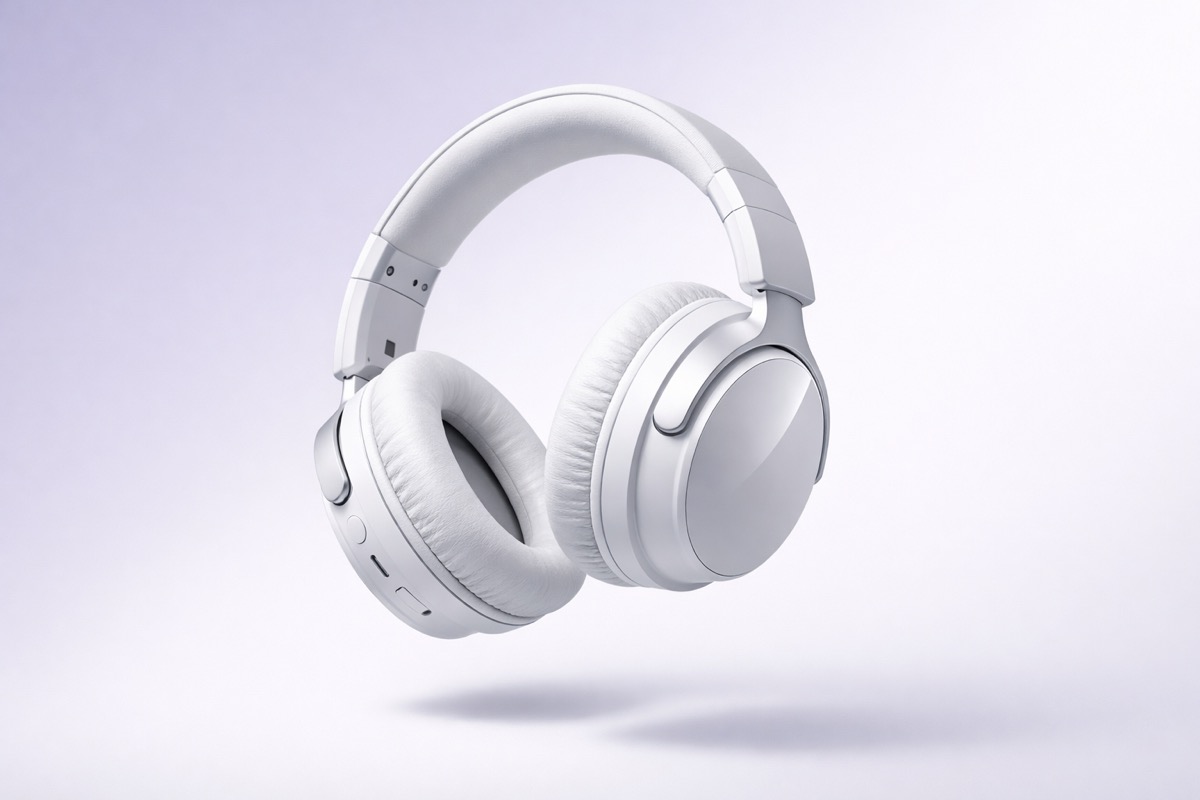
The most effective Kling 3.0 workflow for product videos:
- Shoot or generate a clean product image — high-res, simple background
- Use Kling 3.0 image-to-video — feed the product image as the starting frame
- Add motion with a prompt — "product slowly rotating, soft studio lighting, particles floating, 4K product photography"
- Generate 5-10 second clips — short enough for social media, long enough to showcase the product
One user reported: "Kling 3.0 looks really promising for e-commerce product videos. The models are designed to generate cinematic-quality video from text, images, or references and follow detailed instructions well." After exporting, enhance your video to 4K with our free AI upscaler for the crispest product shots. And if you want to take motion control further, try the dedicated Kling Motion Control tool to transfer real human motion to any character.
Kling 3.0 for TikTok and Social Media Content
For social media content creation with Kling 3.0:
- Set resolution to 9:16 vertical for TikTok and Instagram Reels
- Keep clips between 5-10 seconds — the sweet spot for scroll-stopping content
- Use Kling 3.0 character reference to create a consistent AI spokesperson
- Combine Kling 3.0 clips with Ken Burns stills for longer content
"Kling works great for short ad clips like 5-10 seconds, especially for scroll-stopping visuals on TikTok or Meta."
Common Kling 3.0 Issues and How to Fix Them
After testing Kling 3.0 extensively and reading community feedback, here are the most common problems and their solutions.
Avoiding Slow Motion in Kling 3.0
One of the most frequently asked questions: "Why is Kling 3.0 doing everything in slow motion?" This happens when your prompt implies slow movement or when the duration is too long for the amount of action described.
Fix: Specify the speed explicitly in your Kling 3.0 prompt ("normal walking speed", "quick movement") and keep your duration reasonable for the action you are describing. A 15-second generation for a 3-second action will stretch everything out.
Fixing Kling 3.0 Lip Sync Problems
Lip sync is the weakest feature in Kling 3.0 right now. "Kling lipsync seems totally not great for anything clip longer than 5 seconds."
Fix: Keep dialogue clips short (under 5 seconds per shot). Use multi-shot mode in Kling 3.0 to break longer conversations into individual shot-reverse-shot clips. Or use the Kling 3.0 standard model instead of Omni for scenes where you do not need synchronized dialogue.
Dealing with Kling 3.0 Prompt Rejection
Some users report "Why is Kling 3.0 rejecting my prompts?" This usually happens due to content filters.
Fix: Remove any terms that might trigger content filters. Rephrase your Kling 3.0 prompt using more neutral language. If you are creating action scenes, describe the choreography rather than using violent terms.
FAQ About Using Kling 3.0
Is Kling 3.0 free to use? Yes, Kling 3.0 offers limited free daily credits on the official Kling AI platform. For more credits, try SoraVideo.art or check our Kling 3.0 pricing guide for the most affordable options.
How do I access Kling 3.0 motion control? Motion control is available in the Kling 3.0 generation panel. Upload a reference video, write a prompt for the character and scene, and the Kling 3.0 AI model applies the movement automatically. Try it on SoraVideo.art.
Can Kling 3.0 maintain character consistency across shots? Yes. Use the Kling 3.0 Elements system to upload a face reference, then reference that element in your prompts. The character stays consistent across all generations.
How long can a Kling 3.0 video be? Up to 15 seconds with multi-shot sequences enabled. Standard single-shot Kling 3.0 generations go up to 10 seconds. For longer content, generate multiple clips and edit them together.
What is the best prompt format for Kling 3.0? Follow the four-part structure: Subject and action, Camera movement, Lighting and mood, Style reference. Be specific and descriptive — the Kling 3.0 AI model responds well to detailed instructions.
Can I use Kling 3.0 for product ads? Absolutely. Kling 3.0 is highly effective for short product showcase videos and ad clips. Use image-to-video mode with your product photo for the best results.
Start creating with Kling 3.0 now
Ready to try everything you just learned? Access Kling 3.0 alongside Sora 2, Seedance 2.0, and more on SoraVideo.art. No separate Kling AI account needed — start generating cinematic AI video today.
Author

Categories
More Posts
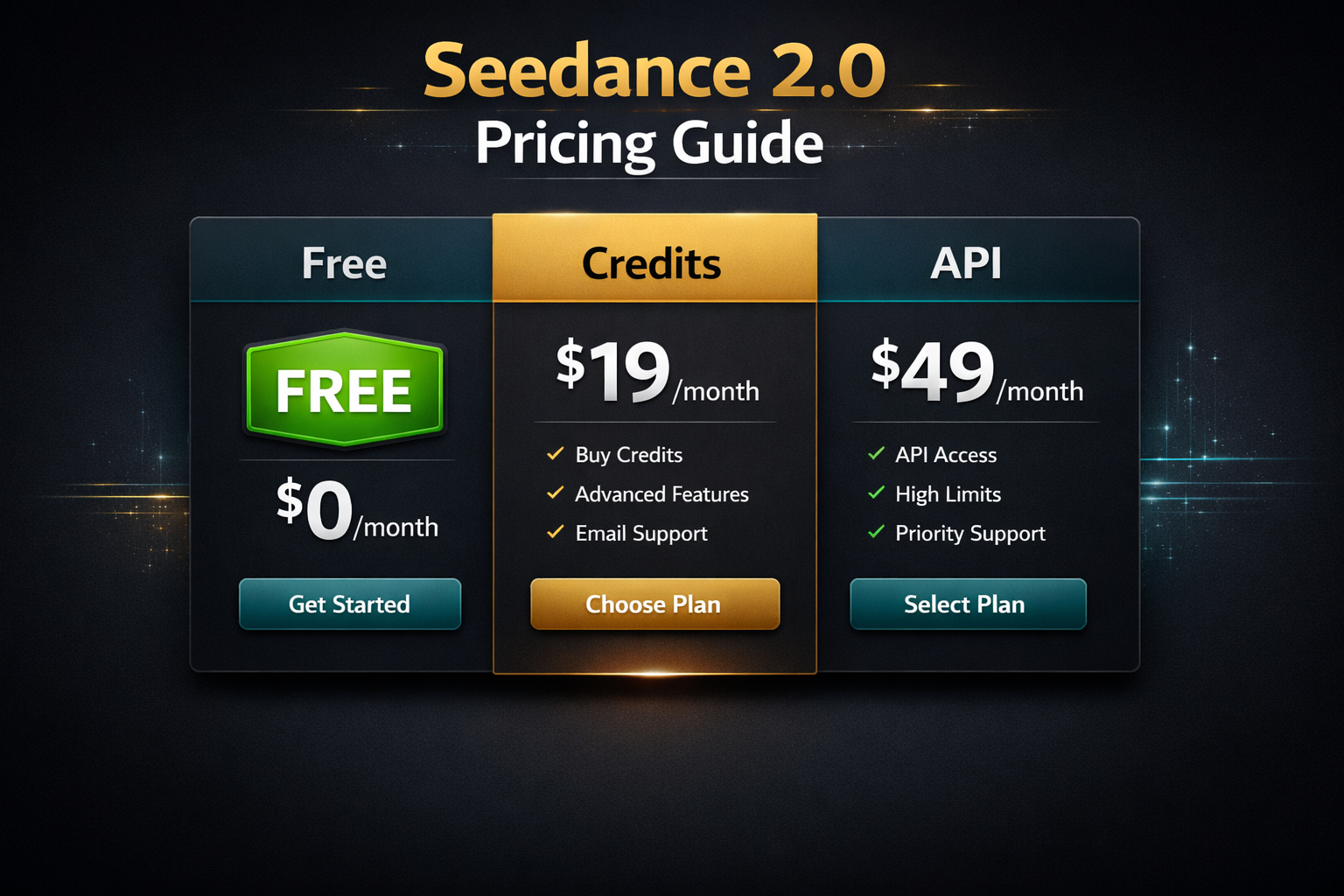
Seedance 2.0 Pricing: Is It Free? Complete Cost Breakdown (2026)
Is Seedance 2.0 free? Yes — with limits. Every pricing option explained: Dreamina free tier, BytePlus API costs, and third-party platforms compared side by side.

Free Sora 2 Watermark Remover: 7 Methods That Work (2026)
I tested every free Sora 2 watermark removal method — from link extraction to open source tools. Here are 7 that actually work, with honest pros and cons.

Sora 2 Watermark Remover: I Tested 10 Tools So You Don't Have To (2026 Rankings)
I tested 10+ Sora 2 watermark remover tools and ranked them by quality, speed, and price. From free online options to professional APIs — here's what actually works for removing Sora watermarks.
Newsletter
Join the community
Subscribe to our newsletter for the latest news and updates