
Sora 2 Image to Video: How to Use It Free (Step-by-Step Guide 2026)
I uploaded a photo and watched Sora 2 turn it into a cinematic AI video clip. Here's how Sora 2 image to video works, how to use it free, and how it compares to Seedance 2.0 and Kling AI.
I uploaded a photo of a woman standing in golden afternoon light. Thirty seconds later, Sora 2 handed me a 10-second cinematic clip — the same person, the same light, but now moving, breathing, alive. That moment is when I understood what Sora 2 image to video actually meant for AI video creation.
Does Sora 2 Have Image to Video?
Yes. Sora 2 has a native image-to-video feature that animates a static photo into a video clip. You upload your source image alongside a text prompt describing the motion you want, and Sora 2 generates a video that preserves the visual style and subject of your image.
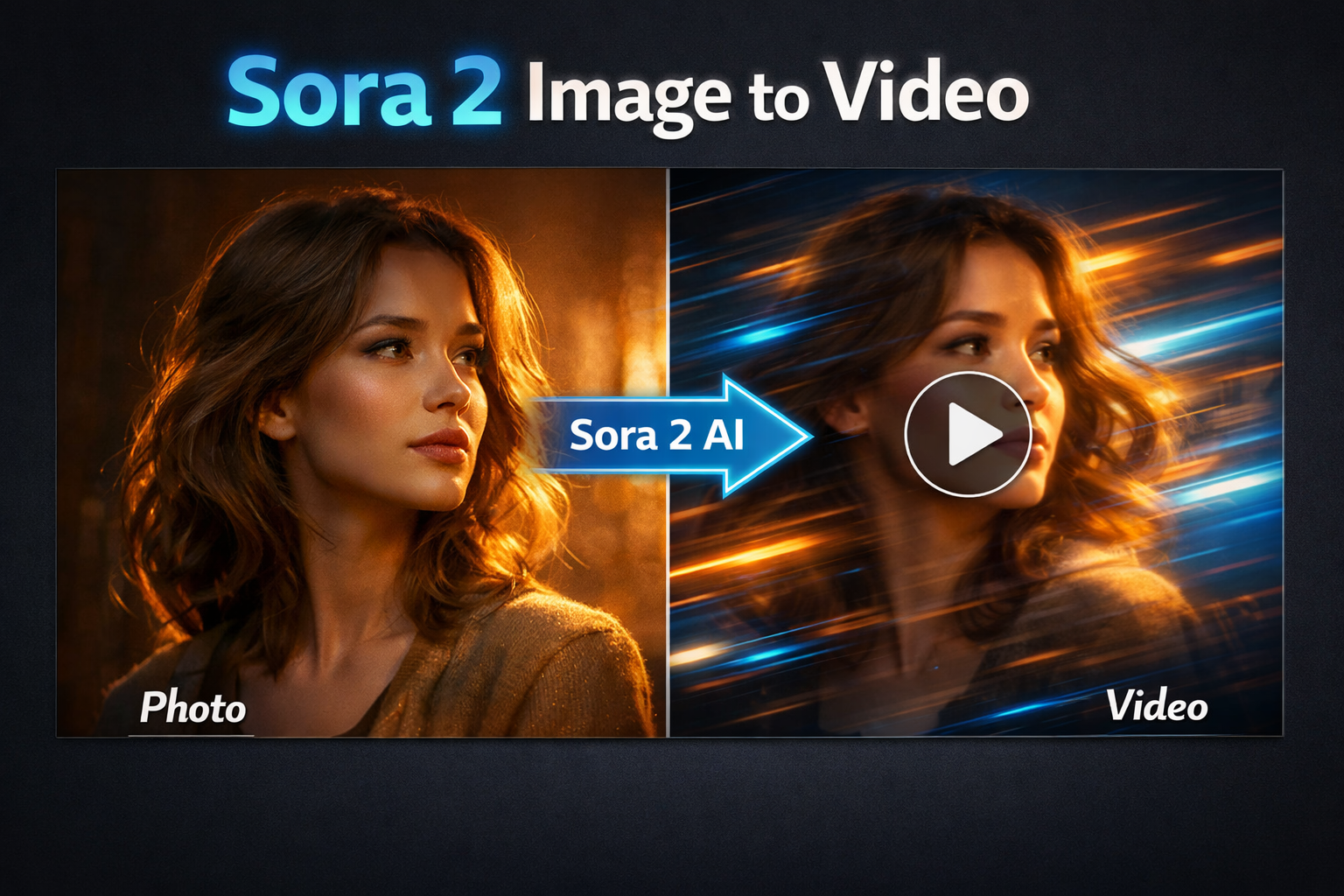
Here's what you need to know: Sora 2 image to video is one of the most cinematic implementations in the AI video space. It produces high-resolution 1080p output with natural, physics-accurate motion. The trade-off is that it requires a paid Sora 2 subscription — there is no free tier on sora.com itself. I will show you how to access it through alternative platforms below.
Access Sora 2 image to video tools
You can use Sora 2 image-to-video features directly at sora.com with a ChatGPT Plus or Pro plan. You can also access Sora 2 tools — including Storyboard — through SoraVideo.art's Sora 2 Storyboard tool, no separate subscription required.
How Sora 2 Image to Video Works
Unlike text-to-video where Sora 2 builds everything from scratch, image-to-video uses your photo as the visual anchor. Sora 2 analyzes the subject, composition, lighting, and style of your image, then generates coherent motion that flows naturally from the still.
The key advantage: visual consistency. Because your image is the reference frame, the generated video maintains the exact look of your source — the same character appearance, the same environment, the same photographic style. No random AI interpretation.
What Sora 2 image to video does particularly well:
- Human subjects with natural body movement and facial animation
- Environmental motion (water, leaves, clouds, light)
- Camera moves like slow push-ins and gentle parallax
- Preserving photorealistic quality from source images
How to Use Sora 2 Image to Video: Step-by-Step
Go to sora.com and log in with your ChatGPT Plus or Pro account. In the creation panel, look for the image upload icon (paper clip or photo icon) next to the prompt field.
Click the image upload button and select your source photo. Sora 2 accepts JPEG, PNG, and WebP formats. For best results, use high-resolution images (at least 1080p) with clear subjects and well-defined lighting. Blurry or low-contrast source images produce lower-quality video output.
In the text prompt field, describe the motion you want to see. Be specific about what moves and how. Good examples: "gentle breeze moves her hair, slow blink, subtle smile," or "camera slowly pushes in, leaves sway in background wind." Avoid prompts that conflict with your image (do not describe a sunset if your image shows midday light).
Choose your output duration (5 or 10 seconds depending on your plan) and resolution. Sora 2 supports up to 1080p for image-to-video. Longer clips and higher resolutions use more credits.
Click Generate and wait 30–60 seconds. Preview the output — if the motion feels mechanical or the subject drifts from your source image, refine your motion prompt and regenerate. Download the final clip once satisfied.
How to Use Sora 2 Image to Video on Third-Party Platforms
If you want to use Sora 2 image-to-video capabilities without the ChatGPT Plus subscription, several third-party platforms provide access:
SoraVideo.art: Access Sora 2 features through SoraVideo.art's Sora 2 Storyboard tool — including image-to-video, multi-frame sequences, watermark removal, and more. No separate ChatGPT subscription required.
Other alternatives: Platforms like Dreamina (Seedance 2.0 based) and Kling AI offer image-to-video with different model characteristics. See the comparison below to pick the right tool for your project.
Tips for Better Sora 2 Image to Video Results
Here are five things I have learned from running hundreds of image-to-video generations:
1. Use Clean, Well-Lit Source Images
Sora 2 performs best with images that have clear subjects, natural lighting, and a single focal point. Cluttered backgrounds, heavy post-processing filters, or extreme color grading in the source image can confuse the motion generation.
2. Write Motion Prompts at Different Scales
Think about motion at three levels: macro (camera movement), mid (subject movement), micro (environmental details). A prompt that covers all three — "slow push in [macro], character turns to look left [mid], dust particles float in light beam [micro]" — produces far more cinematic results than a single-scale description.
3. Match Your Prompt Tense to the Action
Use present-tense, continuous language in your motion prompts: "her hair is blowing in the wind" rather than "her hair blows in the wind." This helps Sora 2 interpret the prompt as ongoing motion rather than a one-time event.
4. Avoid Camera and Subject Conflict
If you describe a camera move AND significant subject movement simultaneously, Sora 2 may struggle to prioritize. For complex shots, run two generations — one focused on subject motion, one on camera movement — and choose the better result.
5. Regenerate at Least Twice
Due to the probabilistic nature of AI video generation, two generations from the same image and prompt can look noticeably different. Running three or four generations and selecting the best one is standard practice for professional-quality output.
Sora 2 vs Seedance 2.0 vs Kling AI — Image to Video Comparison
I ran the same portrait photo through all three models with identical motion prompts. Here is how they compare:
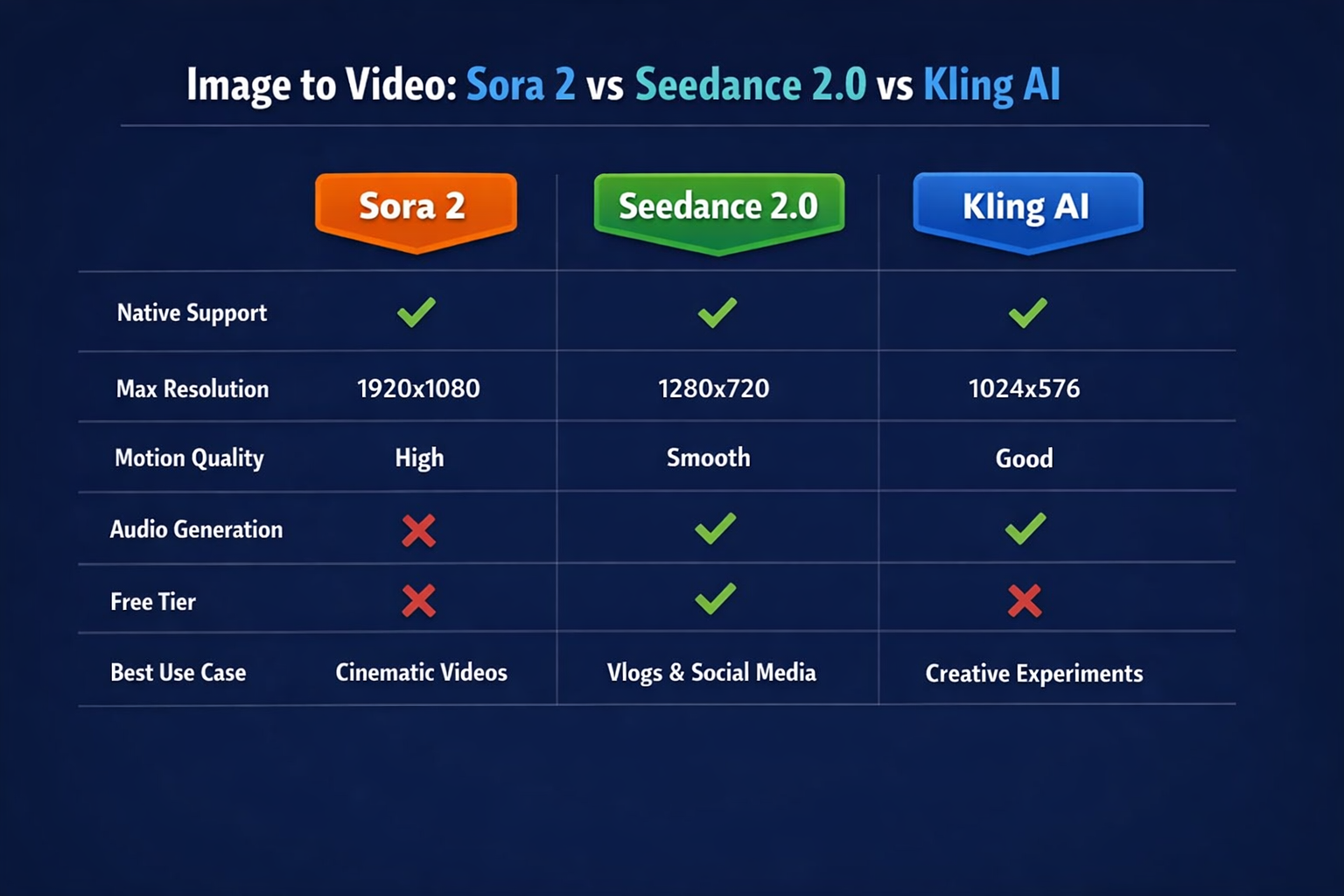
| Feature | Sora 2 | Seedance 2.0 | Kling AI |
|---|---|---|---|
| Native Support | Yes | Yes | Yes |
| Max Resolution | 1920×1080 | Up to 2K | 1080p |
| Motion Quality | High — cinematic | Smooth — natural | Good — precise |
| Audio Generation | No | Yes — synchronized | No |
| Free Tier | No | Yes (Dreamina) | Limited |
| Best Use Case | Cinematic hero shots | Vlogs + social media | Character animation |
Here is my honest assessment:
Choose Sora 2 when you have a high-quality source photo and need photorealistic, cinematic motion output. The resolution and motion quality are industry-leading for single-subject animations.
Choose Seedance 2.0 when you want image-to-video with synchronized audio generation and faster turnaround. Better for social content, free to start on Dreamina, and supports 2K output.
Choose Kling AI when your image features complex human motion or character performance. Kling's motion control capabilities handle dance moves, sports, and expressive gestures better than either model.
FAQ
Is Sora 2 image to video free? Sora 2's native image-to-video requires a paid ChatGPT Plus or Pro subscription. There is no free tier for Sora 2 directly. Third-party platforms and SoraVideo.art offer alternative access paths.
What image formats does Sora 2 support for image to video? Sora 2 accepts JPEG, PNG, and WebP image formats for image-to-video generation. Maximum recommended upload size is around 10MB.
How long can Sora 2 image to video clips be? Standard Sora 2 image-to-video clips can be up to 10 seconds on Pro plans. The 352p lower-resolution mode has a 15-second maximum. Higher resolution modes at 720p and 1080p support up to 10 seconds per generation.
Does Sora 2 image to video preserve the original photo's style? Yes — this is one of Sora 2's core strengths. The model uses your source image as the visual anchor and maintains subject appearance, lighting, and photographic style throughout the generated video.
Can I use my own photos for Sora 2 image to video? Yes. You can upload personal photos, professional photography, AI-generated images, or any copyright-clear image you own or have rights to use. Review OpenAI's usage policies for commercial use cases.
Is Sora 2 image to video better than Seedance 2.0? They serve different strengths. Sora 2 leads in cinematic quality for single-subject hero shots. Seedance 2.0 leads in audio synchronization, free access, and 2K output. Both are worth using depending on the project.
The Bottom Line
Sora 2 image to video produces some of the most cinematic AI video output available in 2026. Feed it a great photo and a clear motion prompt, and you get a clip that looks like it came from a professional production.
The main limitation is cost — there is no free tier on sora.com itself. For free image-to-video with great output, Seedance 2.0 on Dreamina is the answer. For the highest-quality cinematic output on a paid plan, Sora 2 is still the benchmark.
Use Sora 2 image to video tools
Access Sora 2 Storyboard, Seedance 2.0, Kling Motion Control, and watermark removal on SoraVideo.art — all your AI video tools in one place. See pricing plans.
Author

Categories
More Posts
10 Best Grok Imagine Alternatives for AI Images (2026)
We tested 10 AI image tools to find the best Grok Imagine alternatives in 2026, comparing speed, realism, editing, text rendering, and practical free access.

Seedance 2.0 — ByteDance AI Video Generator Features & Full Guide
I tested Seedance 2.0 by ByteDance — native 2K video, multi-shot storytelling, and real audio sync. Full guide comparing Seedance 2 vs Kling AI vs Sora 2 inside.
Kling 3.0 AI Video Model: Features, Omni Mode & Honest Review (2026)
Complete Kling 3.0 guide with real user reviews. Multi-shot sequences, native audio, Omni mode, character consistency, and honest quality assessment for Kling AI 3.0.
Newsletter
Join the community
Subscribe to our newsletter for the latest news and updates