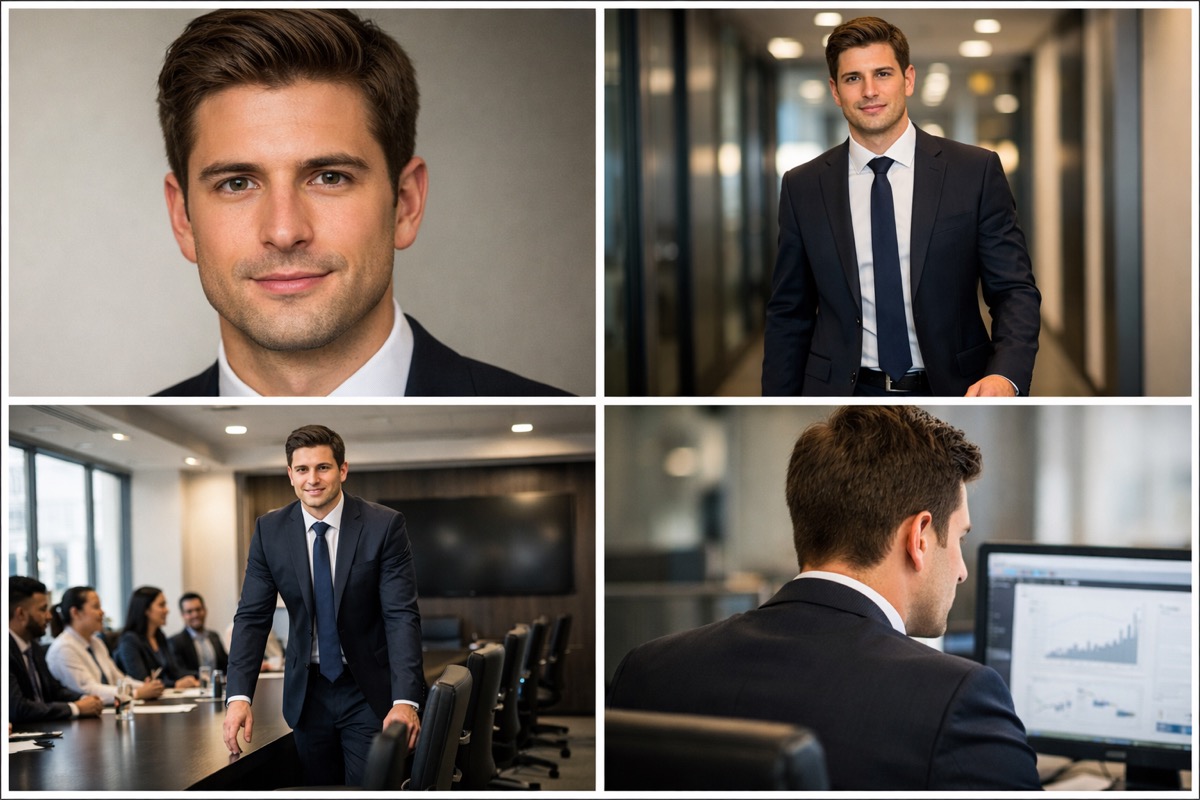
Kling 3.0 Omni vs Standard: Features, Omni Edit & Differences
What is Kling 3.0 Omni? Complete comparison of Kling 3.0 vs Omni — native audio, character reference, Omni Edit, multi-shot sequences, and honest user feedback inside.
When Kling 3.0 launched, I immediately noticed two model options in the dropdown: "Kling 3.0" and "Kling 3.0 Omni." Nobody explained the difference clearly. I burned through credits testing both before I understood when to use which. Here is everything I learned about the Kling 3.0 Omni model — what it does better, where it falls short, and when the standard Kling 3.0 model is actually the smarter choice.
What Is Kling 3.0 Omni?
Kling 3.0 Omni is the unified multimodal video foundation model from Kuaishou. Think of it as the "everything" version of Kling 3.0 — it combines video generation, native audio, character voice consistency, and video source editing into a single Kling AI model.
The key word is "multimodal." While standard Kling 3.0 generates video (with optional basic audio), the Kling 3.0 Omni model processes and generates across multiple modalities simultaneously — text, image, video, and audio are all handled by one unified Kling AI architecture.
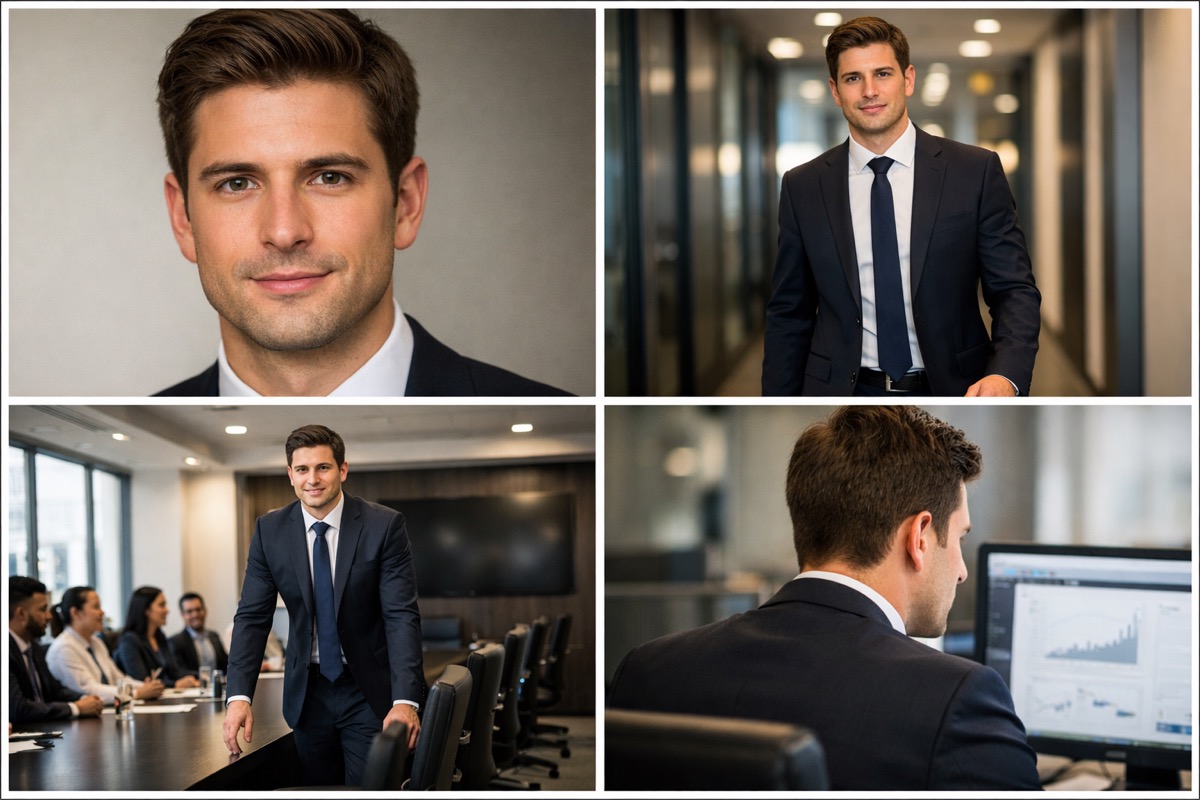
The Kling 3.0 Omni model is described as "a unified multimodal video foundation model" — powerful AI video model for VFX, character-driven content, and everything that requires tight synchronization between visual and audio elements.
Kling 3.0 Standard vs Kling 3.0 Omni: All Differences
Here is the complete feature comparison between the two Kling 3.0 model variants:
| Feature | Kling 3.0 Standard | Kling 3.0 Omni |
|---|---|---|
| Video Generation | Full quality | Full quality |
| Native Audio | Basic / limited | Full multi-character dialogue |
| Character Voice Lock | No | Yes — consistent voices across shots |
| Video Source Swap | No | Yes — Omni Edit |
| Multi-Shot Sequences | Yes (3-15s) | Yes (3-15s) |
| Character Reference | Elements system | Elements + voice reference |
| Motion Control | Full | Full + video source replacement |
| Image-to-Video | Yes | Yes + character swap |
| Resolution | 1080p / 4K Pro | 1080p / 4K Pro |
| Cost per Second | ~$0.14-0.21 | ~$0.21-0.28 |
| Best For | Video-only content | Audio+video synchronized content |
The core difference: Kling 3.0 Standard is for video-first content. Kling 3.0 Omni is for content that needs synchronized audio, character voice consistency, and video source editing.
If you are generating videos where you plan to add your own voiceover, music, or sound design later, the standard Kling 3.0 model saves you money without sacrificing video quality.
Kling 3.0 Omni Core Features
Native Audio with Multiple Characters
The standout feature of the Kling 3.0 Omni model is true native audio generation. The model generates dialogue, ambient sound, and character voices as part of the video generation process — not as a separate step.
What makes the Kling 3.0 Omni audio different from adding a voice-over after the fact:
- Lip sync is generated alongside audio — the Kling AI model creates mouth movements that match the generated speech
- Multiple character voices — each character in your Kling 3.0 Omni scene can have a distinct voice
- Ambient audio — background sounds, room tone, and environmental audio are generated contextually
- Emotional consistency — the Kling 3.0 Omni model matches vocal emotion to facial expression
Character Reference — Consistent Faces and Voices
Character reference in the Kling 3.0 Omni model goes beyond visual consistency. When you upload a character reference, the Omni model locks both the visual appearance and the voice profile.
This means you can:
- Create a character with a specific voice in your first Kling 3.0 Omni generation
- Reference that same character in subsequent generations
- The face, body, clothing, AND voice remain consistent across all Kling 3.0 Omni outputs
For creators building recurring character content — AI YouTube channels, social media series, virtual influencers — this is a fundamental capability that the standard Kling 3.0 model cannot match.
Multi-Shot Sequences (3-15 Seconds)
Both Kling 3.0 Standard and Kling 3.0 Omni support multi-shot sequences. The difference is that Omni maintains audio continuity across shots — dialogue can flow naturally across cuts, and ambient sound stays consistent.
In the standard Kling 3.0 model, each shot in a multi-shot sequence is effectively a separate audio generation. In Kling 3.0 Omni, the entire sequence shares one unified audio timeline.
Cinematic Quality from Multiple Input Types
The Kling 3.0 Omni model accepts the widest range of inputs:
- Text-to-video: Describe your scene in words and the Kling 3.0 Omni model generates video with synchronized audio
- Image-to-video: Upload a reference image and Kling 3.0 Omni animates it with audio
- Video-to-video: Upload a reference video and the Omni model transforms it while preserving motion
- Character + motion: Combine character reference with motion control for maximum consistency in Kling 3.0
How to Use Kling 3.0 Omni Edit
Omni Edit is the feature that separates Kling 3.0 Omni from every other AI video model. It allows you to take an existing video and replace elements within it — swap characters, change environments, or modify specific visual elements while keeping the original motion and timing.
Video Source Replacement with Kling 3.0 Omni Edit
The most powerful use of Kling 3.0 Omni Edit:
- Record a reference video of yourself or an actor performing the scene
- Upload to Kling 3.0 Omni Edit as the video source
- Upload a character reference image of the character you want to appear
- Generate — the Kling 3.0 Omni model replaces the person with your character while keeping the original motion, timing, and camera work
This is the workflow that one user asked about: "How do you use Kling 3.0 motion control? Is it using Kling 3.0 Omni edit with video source and image to replace?" — yes, exactly.
Image-to-Video with Character Swap
You can also use Kling 3.0 Omni Edit to:
- Take a static product image and generate a video with a specific spokesperson
- Swap the character in an existing AI-generated Kling 3.0 video
- Keep the camera movement and scene composition but change who appears
Motion Control in Kling 3.0 Omni Mode
Motion control in the Kling 3.0 Omni model works the same as in standard Kling 3.0, with one addition: the video source swap. You can upload a motion reference video AND a different character reference, and the Kling 3.0 Omni model combines both — your character performing the reference motion.
For a full walkthrough of Kling 3.0 motion control, read our how to use Kling 3.0 guide. You can also try Kling Motion Control directly on SoraVideo.art to transfer gestures and expressions to any character.
What Creators Actually Think About Kling 3.0 Omni
I have collected feedback from hundreds of creators across Reddit, Twitter, and AI video communities. The Kling 3.0 Omni model generates strong opinions in both directions.
What Works Well in Kling 3.0 Omni
The positive feedback centers on motion quality and character consistency:
- "This Kling 3.0 output is wild — that level of detail and motion stability really touches a new tier compared to earlier versions"
- "The character consistency is what really got me. I could actually create a character and have them appear in multiple shots without looking like a completely different person each time"
- "Kling seems to handle the physics of motion and action sequences much better" than competitors
- "The model follows the original body movement almost perfectly — head tilt, shoulder motion, timing, and small gestures all transfer really naturally"
For e-commerce specifically: "Kling 3.0 looks really promising for e-commerce product videos. The models are designed to generate cinematic-quality video from text, images, or references and follow detailed instructions well."
Known Issues with Kling 3.0 Omni
The negative feedback is equally specific — and important to understand before committing credits:
Hallucination and extra characters: "I can confirm Omni 3 is absolute garbage — it hallucinates, creates extra characters and clones, it acts like SDXL in its early days." This is the most reported Kling 3.0 Omni issue. The model sometimes generates duplicate characters or adds people who were not in the prompt.
Lip sync quality: "Kling lipsync seems totally not great for anything clip longer than 5 seconds." Despite being the audio-focused model, lip sync in longer Kling 3.0 Omni clips remains inconsistent.
Cost for iteration: The Kling 3.0 Omni model costs more per second than standard. Combined with the need to regenerate when hallucinations occur, the effective cost per successful video is higher than the per-second rate suggests.
Prompt adherence: Some users report "$160 on the Ultra plan with terrible prompt adherence and even worse physics." The Kling 3.0 Omni model occasionally ignores specific prompt instructions, especially for complex multi-character scenes.
The Honest Verdict on Kling 3.0 Omni
Kling 3.0 Omni is the most capable version of the Kling AI model — but "most capable" does not always mean "most reliable." For audio-synchronized content with 1-2 characters, it is genuinely impressive. For complex multi-character scenes, be prepared for extra iterations and higher costs.
My recommendation: Use Kling 3.0 Standard for video-only content. Switch to Kling 3.0 Omni only when you specifically need native audio, character voice consistency, or Omni Edit video source replacement.
Kling 3.0 Omni vs Veo 3.1 vs Seedance 2.0
How does the Kling 3.0 Omni model compare to other top-tier AI video generators?
| Feature | Kling 3.0 Omni | Google Veo 3.1 | Seedance 2.0 | Runway Gen-4 |
|---|---|---|---|---|
| Native Audio | Multi-character | Single character | Limited | No |
| Character Consistency | Excellent | Good | Good | Very good |
| Motion Control | Best-in-class | Limited | Good | Good |
| Cinematic Realism | Very good | Best-in-class | Very good | Very good |
| Multi-Shot | Up to 15s | 8s max | 10s max | 10s max |
| Video Source Swap | Yes (Omni Edit) | No | No | Limited |
| Cost (10s) | ~$2.80 | ~$3.50 | ~$1.90 | ~$4.00 |
| Biggest Weakness | Hallucinations | Short duration | Censorship | High cost |
As one experienced user summarized the landscape: "Runway's still the safest bet if budget is not the issue, but honestly Kling's closing that gap fast." Another noted: "Veo 3.1 still has the edge on raw visual realism for single shots" while Kling 3.0 Omni dominates in motion and multi-shot capabilities.
For a price-focused comparison, read our Kling 3.0 pricing guide.
Kling 3.0 Omni for E-Commerce Product Videos
E-commerce is where the Kling 3.0 Omni model shines brightest in practical use. The combination of character consistency, motion control, and native audio creates a powerful workflow for product content:
- Product showcase with voiceover: Use Kling 3.0 Omni to generate a product video with AI-narrated features — no separate voiceover recording needed
- Consistent AI spokesperson: Create a virtual presenter using character reference and use them across your entire product line
- Multi-angle product shots: Use Kling 3.0 Omni multi-shot to show a product from multiple angles in one continuous video
- Ad clips with audio: Generate scroll-stopping 5-10 second ad clips with integrated audio for TikTok and social media platforms
The practical advice from the community: "I storyboard every hero shot in stills first so the shape and details never drift, then feed those images into Kling image-to-video for the final product clips."
Where to Access Kling 3.0 Omni
Kling 3.0 Omni is available on:
Official Kling AI Platform
The klingai.com platform has full Kling 3.0 Omni access. Select "Omni" from the model picker when generating. All features including Omni Edit are available.
Higgsfield AI
Higgsfield offers Kling 3.0 Omni access through their video generation platform. Pricing is credit-based.
SoraVideo.art
Access Kling 3.0 Omni alongside Sora 2, Seedance 2.0, and other AI video tools on SoraVideo.art. One subscription covers all models — no separate Kling AI credits needed. See plans.
FAQ About Kling 3.0 Omni
What is the difference between Kling 3.0 and Kling 3.0 Omni? Kling 3.0 Standard generates video with optional basic audio. Kling 3.0 Omni is the unified multimodal model that adds full native multi-character audio, character voice locking, and Omni Edit video source replacement. Omni costs more per second but offers tighter audio-video synchronization.
Does Kling 3.0 Omni support native audio? Yes — native audio with multiple characters is the headline feature of Kling 3.0 Omni. Each character can have a distinct voice, and lip sync is generated alongside the audio by the Kling AI model.
How do I use Kling 3.0 Omni Edit? Upload a reference video as the source, upload a character reference image, and write a prompt. The Kling 3.0 Omni model replaces the character in the video while keeping the original motion and camera work. Read our how to use Kling 3.0 guide for step-by-step instructions.
Can Kling 3.0 Omni maintain character consistency? Yes — Kling 3.0 Omni maintains both visual and vocal consistency using the Elements system. Upload a face reference and the model keeps that character's face, build, clothing, and voice consistent across all generations.
Is Kling 3.0 Omni worth the extra cost? Only if you need native audio or Omni Edit. For video-only content where you plan to add your own audio, the standard Kling 3.0 model delivers the same video quality at a lower cost per second. Use Omni specifically when audio-video sync matters.
Why does Kling 3.0 Omni sometimes create extra characters? This is a known hallucination issue with the Kling 3.0 Omni model. The multimodal architecture occasionally generates duplicate or unwanted characters, especially in complex multi-person scenes. The workaround is to keep scenes simple (1-2 characters) and regenerate when artifacts appear.
Try Kling 3.0 Omni today
Experience the full power of Kling 3.0 Omni alongside Sora 2, Seedance 2.0, and more on SoraVideo.art. One platform, every major AI video model — start creating with native audio and character consistency now.
Author

Categories
More Posts
Genie 3: Google DeepMind AI World Model - How to Use It
Genie 3 is Google DeepMind's real-time AI world model that creates interactive 3D worlds. Learn how to use Genie 3, try Project Genie demo, and explore all features.

How to Remove Sora 2 Watermark: 5 Methods That Actually Work in 2026
Learn how to remove Sora 2 watermark from your AI-generated videos. We tested Reddit suggestions, CapCut, and professional tools to find the best Sora watermark remover.

What Is Sora 2? The AI Video Generator Everyone Is Talking About
Understand Sora 2's core capabilities, how it stacks up against rivals, and why creators rave about it.
Newsletter
Join the community
Subscribe to our newsletter for the latest news and updates