
How to Remove Seedance 2.0 Watermark: 5 Methods That Work (2026)
Step-by-step tutorial: how to remove the Seedance 2.0 AI watermark in 5 ways. Each method includes detailed instructions and screenshots for every skill level.
You just generated an amazing video with Seedance 2.0 — cinematic lighting, smooth motion, incredible detail. Then you notice it: the "AI Generated" watermark sitting in the bottom-right corner. It ruins everything. Don't worry — there are 5 proven methods to fix this, and the best one doesn't involve removing anything at all.
In this guide, I'll walk you through how to remove Seedance 2.0 watermarks step by step. Each method includes detailed instructions so you can follow along, regardless of your technical skill level.
Fastest Solution: Skip the Watermark Entirely
Why remove a watermark when you can avoid it? Generate watermark-free Seedance 2.0 videos directly with SoraVideo.art → — free credits for new users.
What Is the Seedance 2.0 Watermark and Why Is It There?
Before diving into removal methods, let's understand what we're dealing with.
The "AI Generated" Badge
Every video created by Seedance 2.0 carries a small translucent badge — typically reading "AI Generated" or "AI VIDEO" — positioned in the bottom-right corner of the frame. This watermark is embedded by ByteDance across all platforms that use the Seedance 2.0 model.
Why ByteDance Adds This Watermark
- Responsible AI policy: ByteDance marks AI-generated content to promote transparency
- Regulatory compliance: Many regions are introducing AI content labeling requirements
- Content authenticity: Helps viewers distinguish AI-generated videos from real footage
How AI Video Watermarks Work
The Seedance 2.0 watermark is applied during the final rendering stage of the video generation pipeline. Unlike invisible metadata watermarks, this is a visible overlay burned into the video frames.
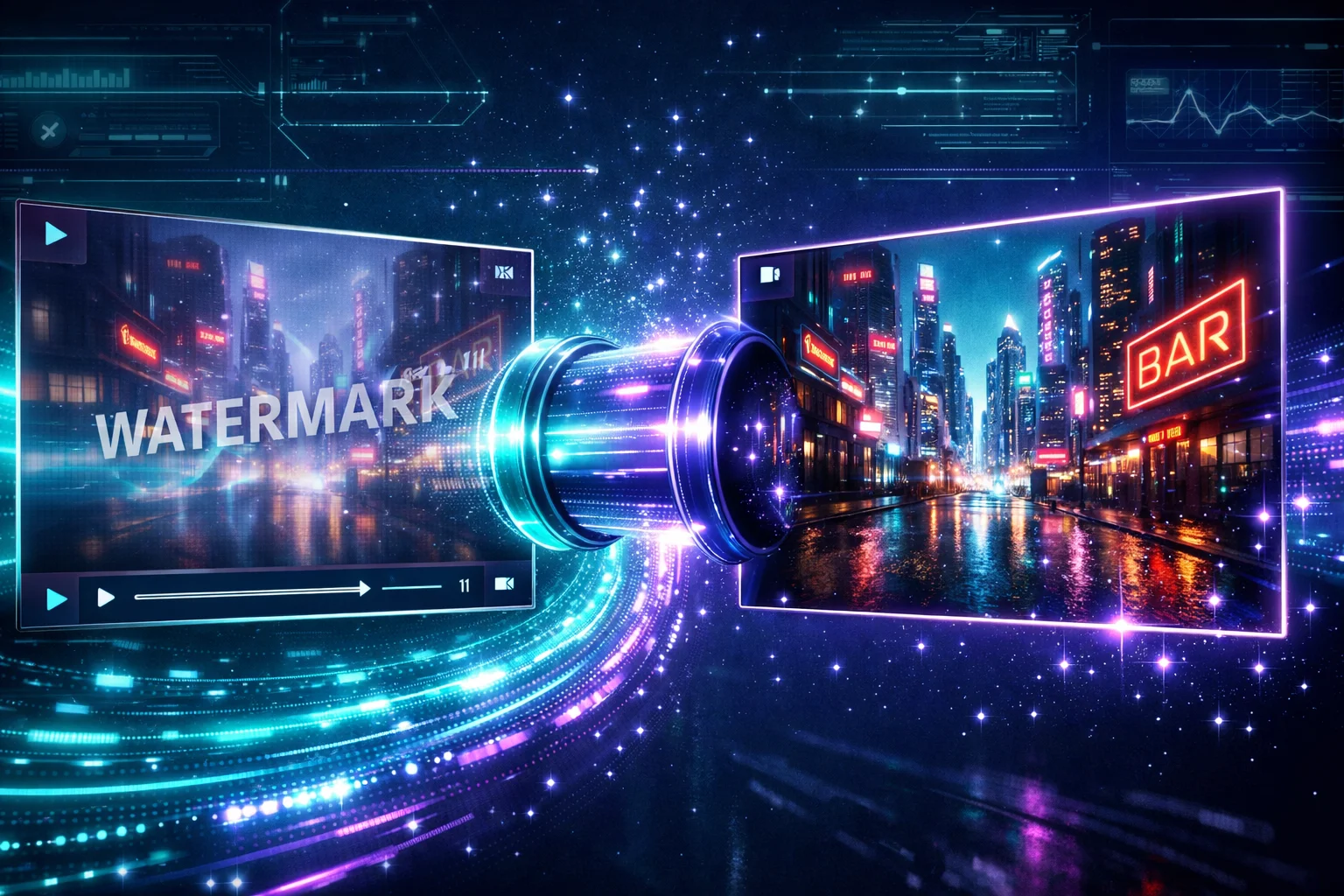
This means the watermark exists as actual pixel data in every frame — which is why you need proper tools or techniques to handle it without degrading the rest of your video.
Method 1: Generate Watermark-Free Videos Directly (Recommended)
This is the method I recommend above all others. Instead of dealing with watermark removal, you can generate Seedance 2.0 videos that never have a watermark in the first place.
Step-by-Step Tutorial
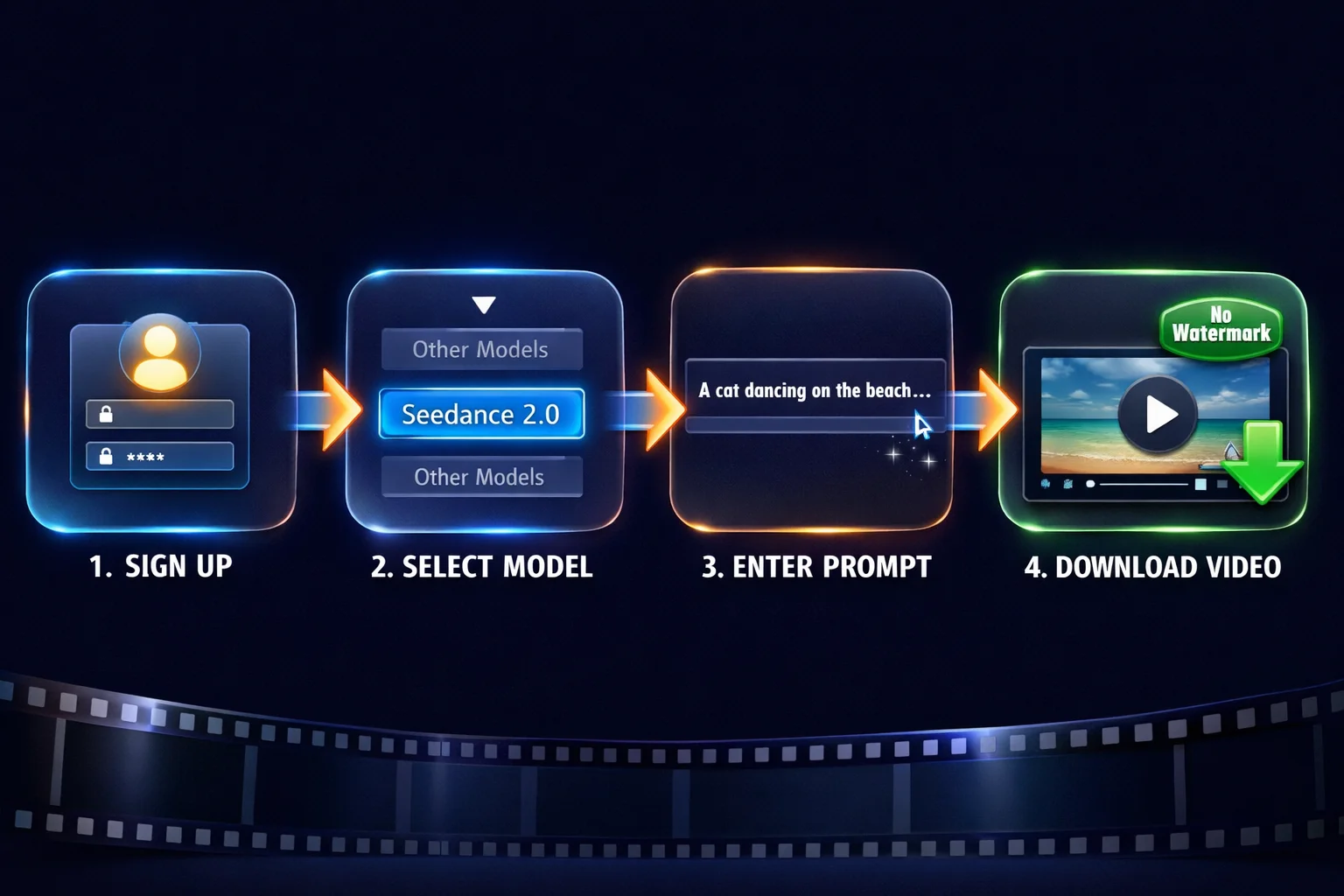
Step 1: Create Your Account
Go to SoraVideo.art and sign up. New accounts come with free credits — no credit card required.
Step 2: Select the Seedance 2.0 Model
In the video generator, open the model dropdown and select Seedance 2.0. This ensures you get the same quality as Dreamina or the ByteDance API, but without the watermark.
Step 3: Write Your Prompt
Enter a detailed description of the video you want. The more specific your prompt, the better the result.
Step 4: Generate and Download
Click generate, wait about 60 seconds, and download your watermark-free video. That's it — no post-processing needed.
Writing Better Prompts for Seedance 2.0
The quality of your watermark-free video depends heavily on your prompt. Here's a proven formula:
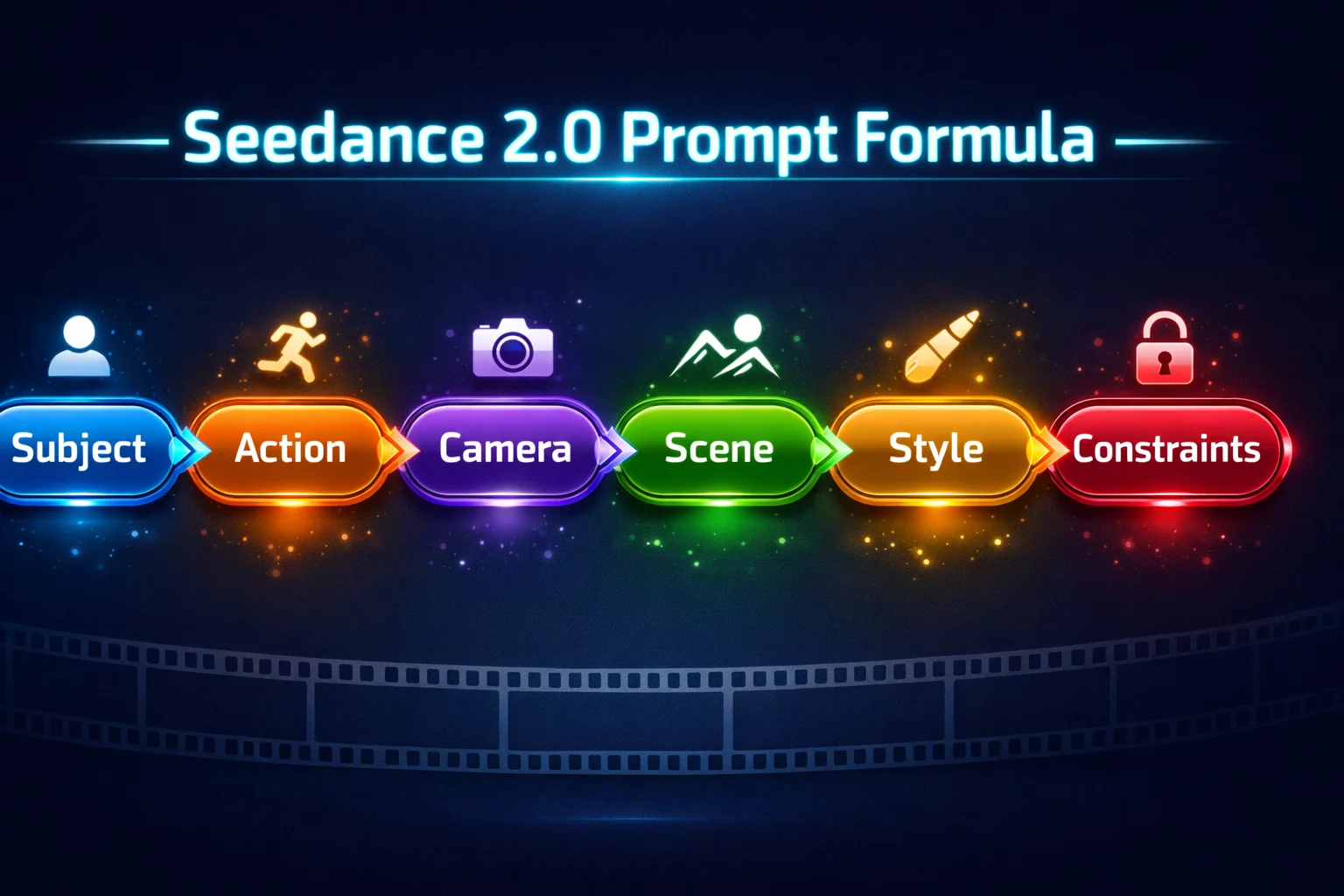
The 6-Element Formula:
- Subject — Who or what is in the video? ("A young woman in a red dress")
- Action — What's happening? ("walking slowly through a garden")
- Camera — What's the camera doing? ("tracking shot, shallow depth of field")
- Scene — Where is this set? ("a Japanese zen garden at golden hour")
- Style — What's the visual style? ("cinematic, film grain, warm color grading")
- Constraints — Any technical specs? ("4K, 10 seconds, smooth motion")
Example prompt:
A young woman in a flowing white dress walks along a misty lakeside at dawn. Slow tracking shot with shallow depth of field. Cinematic lighting, soft golden tones, film grain texture. 10 seconds, smooth camera movement.
Why This Is Method #1
| Aspect | Generate Direct | Remove After |
|---|---|---|
| Quality | 100% original | 95-99% (minor artifacts possible) |
| Speed | ~60 seconds | 30 seconds + original generation time |
| Cost | Same credits | Double the work |
| Simplicity | One step | Two+ steps |
There's simply no reason to generate with a watermark and then remove it, when you can generate without one from the start.
Method 2: AI Watermark Removal Tool
If you already have Seedance 2.0 videos with watermarks — maybe from Dreamina or another platform — this is your best option.
How to Use SoraVideo.art's Watermark Remover
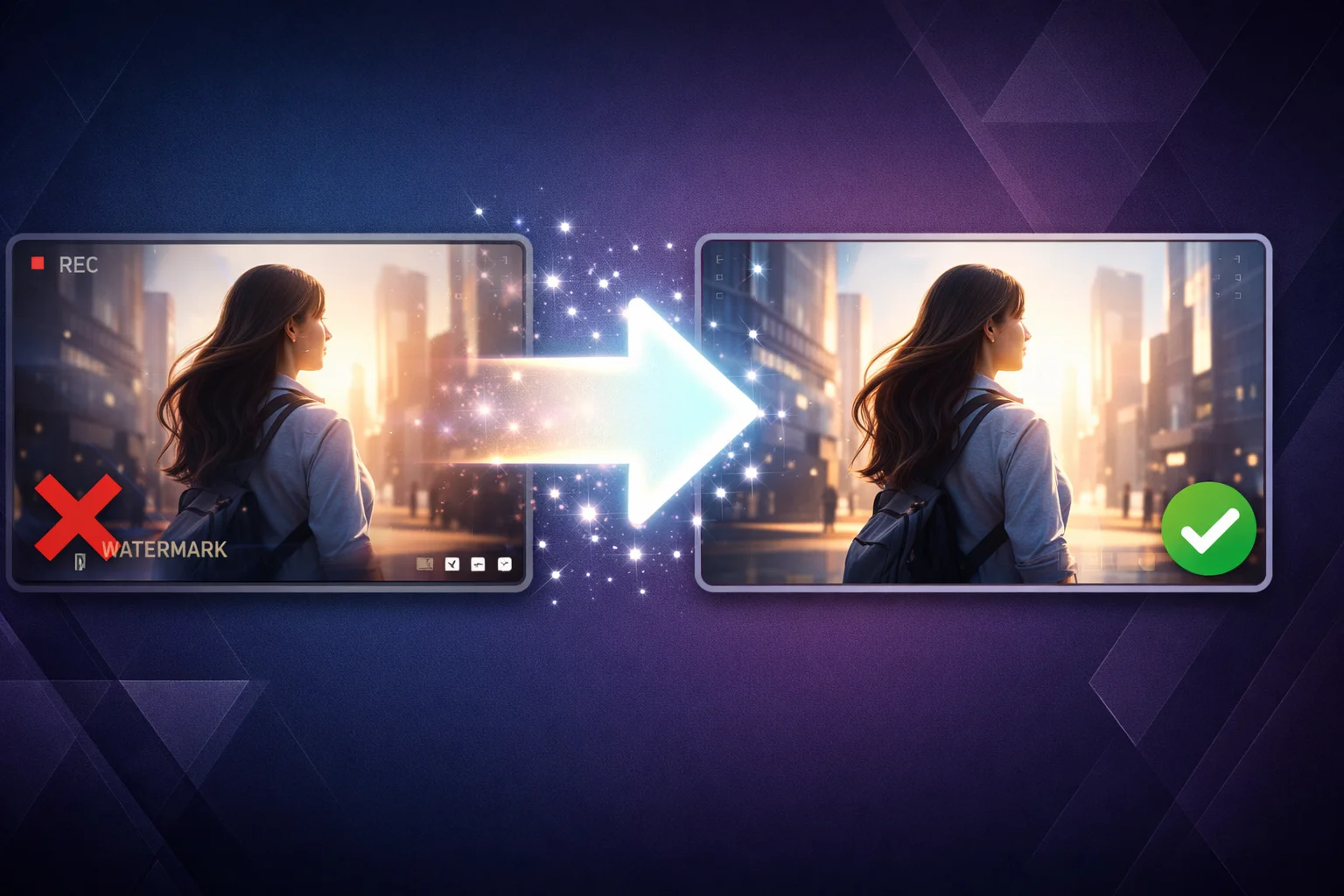
Step 1: Go to SoraVideo.art Watermark Remover
Step 2: Upload your watermarked video (supports MP4, MOV)
Step 3: The AI automatically detects the "AI Generated" watermark position and uses inpainting to reconstruct the underlying pixels
Step 4: Preview the result — check the watermark area closely
Step 5: Download your clean video
How AI Inpainting Works
Unlike simple blur or crop methods, AI inpainting:
- Analyzes the pixels surrounding the watermark
- Predicts what the original content looked like under the watermark
- Reconstructs those pixels seamlessly
- Maintains consistent motion across frames
The result is a video that looks like the watermark was never there — no blur spots, no color shifts, no visible patches.
When to Use This Method
- You downloaded videos from Dreamina and want to clean them up
- You have a batch of watermarked Seedance 2.0 clips from another platform
- You want to process existing videos without regenerating them
Method 3: Adobe Premiere Pro (Content-Aware Fill)
For professional video editors who need pixel-level control, Premiere Pro's Content-Aware Fill is a powerful option.
Detailed Steps
Step 1: Import and Prepare
- Import your Seedance 2.0 video into Premiere Pro
- Place it on your timeline
- Set your sequence settings to match the video resolution
Step 2: Create a Mask
- Select the clip on the timeline
- Open the Effect Controls panel
- Under Opacity, click the pen tool (free-draw bezier)
- Carefully draw a mask around the "AI Generated" watermark
- Add a small feather (2-4px) to the mask edges for seamless blending
Step 3: Track the Mask
- In the Effect Controls panel, expand the mask properties
- Click the Track forward button (►) to track the mask across all frames
- Review the tracking and manually adjust any frames where the mask drifts
Step 4: Apply Content-Aware Fill
- With the masked clip selected, go to Window → Content-Aware Fill
- Set the fill method to Object
- Click Generate Fill Layer
- Premiere will analyze surrounding frames and fill the masked area
Step 5: Fine-Tune and Export
- Scrub through the timeline to check for artifacts
- Adjust individual frames if needed
- Export at your desired quality settings
Pros and Cons
| Pros | Cons |
|---|---|
| Pixel-perfect results | 30+ minutes per video |
| Full manual control | $22.99/month subscription |
| Works on any watermark position | Requires Premiere Pro expertise |
| Can handle complex backgrounds | Not practical for batch processing |
Method 4: DaVinci Resolve (Free)
DaVinci Resolve offers a completely free way to remove Seedance 2.0 watermarks using its Fusion compositing engine.
Detailed Steps
Step 1: Download and install DaVinci Resolve (free version)
Step 2: Import your video and add it to the timeline on the Edit page
Step 3: Switch to the Fusion page (bottom toolbar)
Step 4: Add a Paint node between MediaIn and MediaOut:
- Right-click in the node editor → Add Tool → Paint
- Select the Clone brush
- Set the source point to a clean area near the watermark
- Paint over the watermark area
Step 5: For better results, use the Object Removal tool (if available in your version):
- Add a Polygon mask around the watermark
- Apply object removal
- The AI will fill the area based on surrounding content
Step 6: Switch to the Deliver page and export
Tips for Better Results
- Use keyframes if the background behind the watermark changes significantly
- Apply a subtle blur to the repaired area if the clone stamp leaves visible edges
- Process at the highest resolution available for best quality
Method 5: CapCut (Quick Fix)
CapCut offers the fastest manual methods, though with lower quality results.
Three Approaches
Approach A: Crop (Simplest)
- Open your video in CapCut
- Tap the crop/resize tool
- Crop the frame to exclude the bottom-right corner
- Export
Downside: You lose content and change the aspect ratio. Best for vertical crops where the watermark is outside the desired frame.
Approach B: Overlay
- Import your video
- Add a text overlay, gradient, or image over the watermark area
- Position it to cover the "AI Generated" badge
- Export
Downside: The overlay is visible — it just hides the watermark behind something else.
Approach C: AI Object Removal (Pro)
- Open your video in CapCut Pro
- Use the AI object removal feature
- Select the watermark area
- Let the AI process it
Downside: Results are inconsistent on Seedance 2.0 watermarks specifically. Works better on static watermarks.
Comparison: All 5 Methods Side by Side

| Method | Quality | Speed | Cost | Skill Level | Best For |
|---|---|---|---|---|---|
| Generate Direct | 10/10 | ~60s | Free credits | Beginner | Everyone — skip the watermark |
| AI Removal Tool | 9.5/10 | ~30s | Free credits | Beginner | Existing watermarked videos |
| Premiere Pro | 9.5/10 | 30+ min | $22.99/mo | Advanced | Professional editors |
| DaVinci Resolve | 8.5/10 | 20+ min | Free | Intermediate | Budget-conscious pros |
| CapCut | 6-7/10 | 5 min | Free | Beginner | Quick social media posts |
The Future: Why Watermark-Free Generation Wins
The AI video generation landscape is shifting. Instead of creating videos with watermarks and then removing them, the trend is moving toward platforms that offer clean output from the start.

Seedance 2.0 is one of the most advanced AI video models available, with:
- Physics-accurate motion — realistic movement and object interactions
- Cinematic quality — professional-grade lighting and composition
- Diverse styles — from photorealistic to anime to abstract
Why compromise that quality with watermark removal artifacts when you can get clean output directly? Learn more about the model in our Seedance 2.0 AI Video Model guide →.
FAQ: How to Remove Seedance 2.0 Watermark
Can I completely remove the Seedance 2.0 watermark?
Yes. AI-powered tools like SoraVideo.art's Watermark Remover can remove the "AI Generated" badge with near-invisible results. However, the best approach is to generate watermark-free videos directly.
What's the fastest way to remove Seedance 2.0 watermarks?
The fastest method is generating without a watermark (~60 seconds). For existing videos, the AI removal tool takes about 30 seconds. Manual methods in Premiere Pro or DaVinci take 20-30+ minutes.
Can I remove Seedance 2.0 watermarks on my phone?
Yes. CapCut's mobile app offers basic cropping and overlay methods. For better results, use SoraVideo.art's Watermark Remover in your mobile browser — it works on any device.
Does Dreamina offer watermark-free Seedance 2.0 videos?
No. Dreamina, ByteDance's official platform, adds the "AI Generated" watermark to all Seedance 2.0 outputs, including on paid plans. SoraVideo.art is the only platform I've found that delivers watermark-free Seedance 2.0 videos.
Will removing the watermark reduce video quality?
With AI inpainting tools, quality loss is minimal (typically less than 1% in the watermark area). Manual methods like Premiere Pro's Content-Aware Fill can achieve pixel-perfect results. Generating without a watermark has zero quality impact.
Can I remove watermarks from Seedance 2.0 videos in batch?
Yes. SoraVideo.art supports batch uploads for watermark removal. For developers, the API can process hundreds of videos programmatically.
Is the Seedance 2.0 watermark different from Sora's watermark?
Yes. Seedance 2.0 uses an "AI Generated" or "AI VIDEO" badge (ByteDance), while Sora uses an OpenAI logo watermark. The removal process is similar, but the tools may need different detection settings. SoraVideo.art handles both.
What if the watermark overlaps important content?
AI inpainting excels at reconstructing content behind watermarks, even on complex scenes. For critical shots, generate the video without a watermark using SoraVideo.art to avoid any reconstruction artifacts.
Summary
Here's the simplest way to think about removing Seedance 2.0 watermarks:
- Don't have the video yet? → Generate it without a watermark (Method 1)
- Already have a watermarked video? → Use the AI removal tool (Method 2)
- Need pixel-perfect control? → Premiere Pro or DaVinci Resolve (Methods 3-4)
- Just need a quick fix? → CapCut crop or overlay (Method 5)
See the full tool rankings: Seedance 2.0 Watermark Remover: 8 Tools Tested and Ranked →
Need free options? Free Seedance 2.0 Watermark Remover: 7 Ways Without Paying →
Skip the Watermark Entirely
Why spend time removing watermarks when you can avoid them? Generate watermark-free Seedance 2.0 videos in 60 seconds — free credits included. Generate Clean Videos Now →
Author

Categories
More Posts

Free Sora 2 Watermark Remover: 7 Methods That Work (2026)
I tested every free Sora 2 watermark removal method — from link extraction to open source tools. Here are 7 that actually work, with honest pros and cons.

How to Remove Sora 2 Watermark: 5 Methods That Actually Work in 2026
Learn how to remove Sora 2 watermark from your AI-generated videos. We tested Reddit suggestions, CapCut, and professional tools to find the best Sora watermark remover.

10 Best Grok Imagine Alternatives for AI Images (2026)
We tested 10 AI image tools to find the best Grok Imagine alternatives in 2026, comparing speed, realism, editing, text rendering, and practical free access.
Newsletter
Join the community
Subscribe to our newsletter for the latest news and updates